
Checking electronic signatures
With the help of these instructions, you can easily check the authenticity and validity of our electronically signed documents yourself.
Prerequisite
Our electronic certificates and reports are available in PDF/A-3 format. This format makes it possible to embed additional files directly in the PDF. To view these attachments and fully validate electronic signatures, you need Adobe Acrobat Reader.
Step 1: Show signature
The information about an electronic signature can be displayed in different ways.
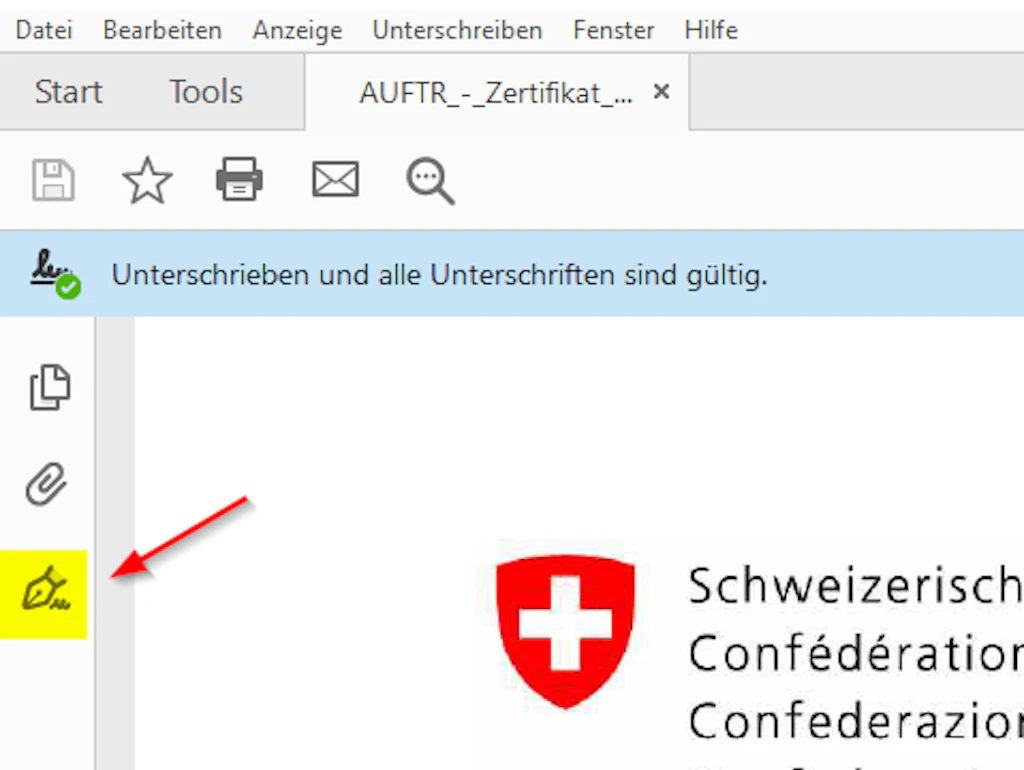
Option 1: Via the signature icon
Option 2: Via the menu
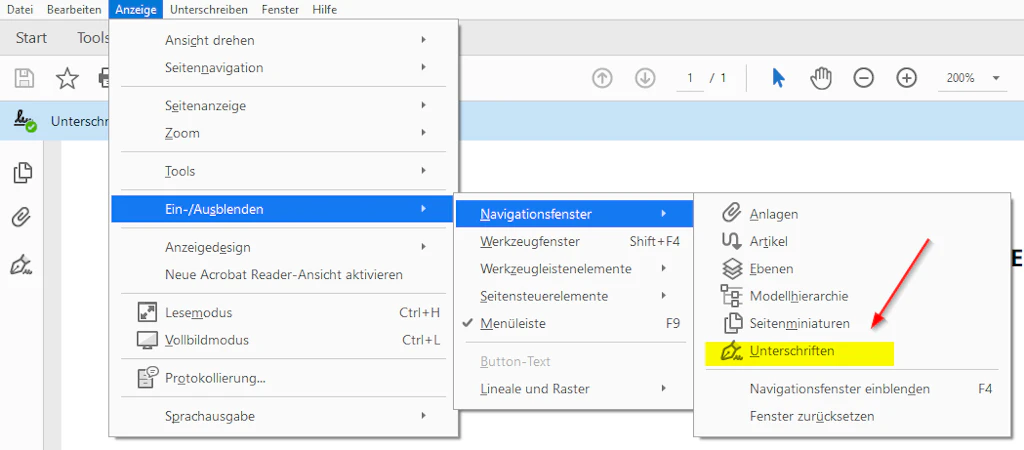
Select the menu path View (Anzeige) > Show/Hide (Ein-/Ausblenden) > Navigation Panes (Navigationsfenster) > Signatures (Unterschriften).
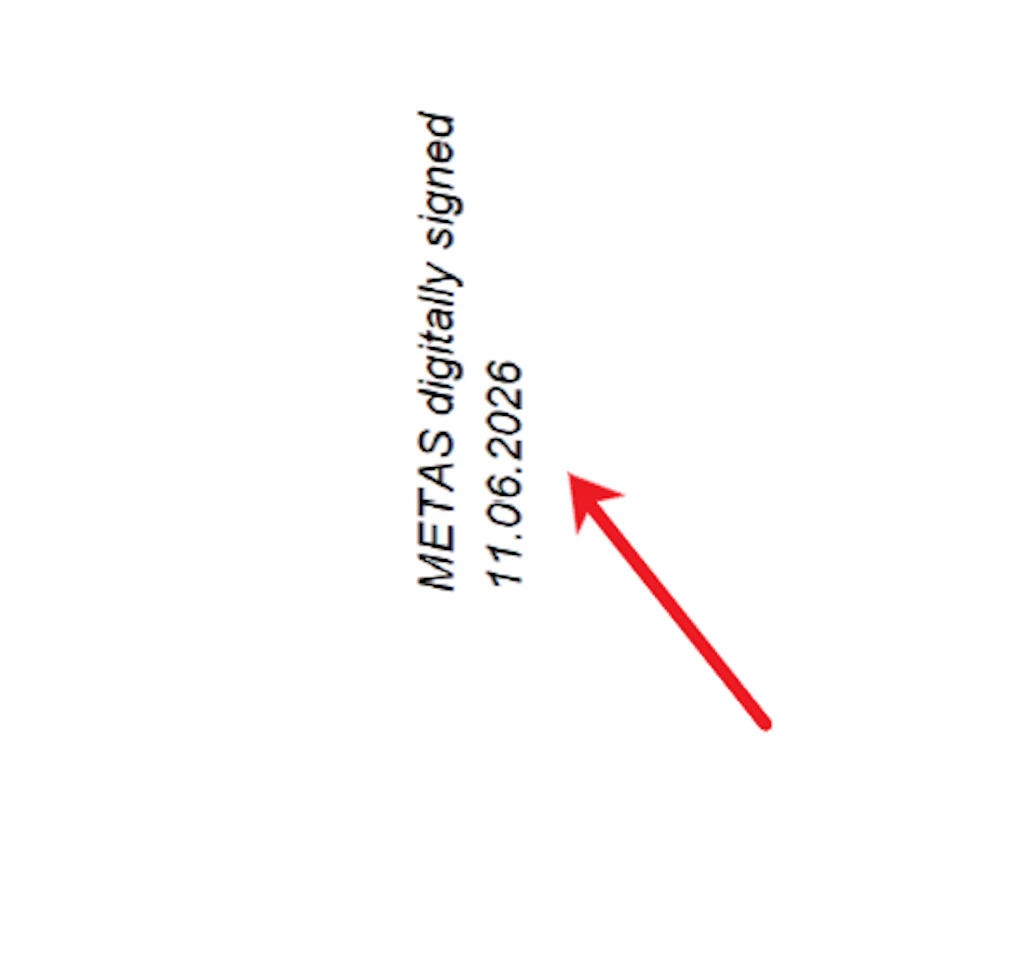
Option 3: Directly in the document
Step 2: Check signature
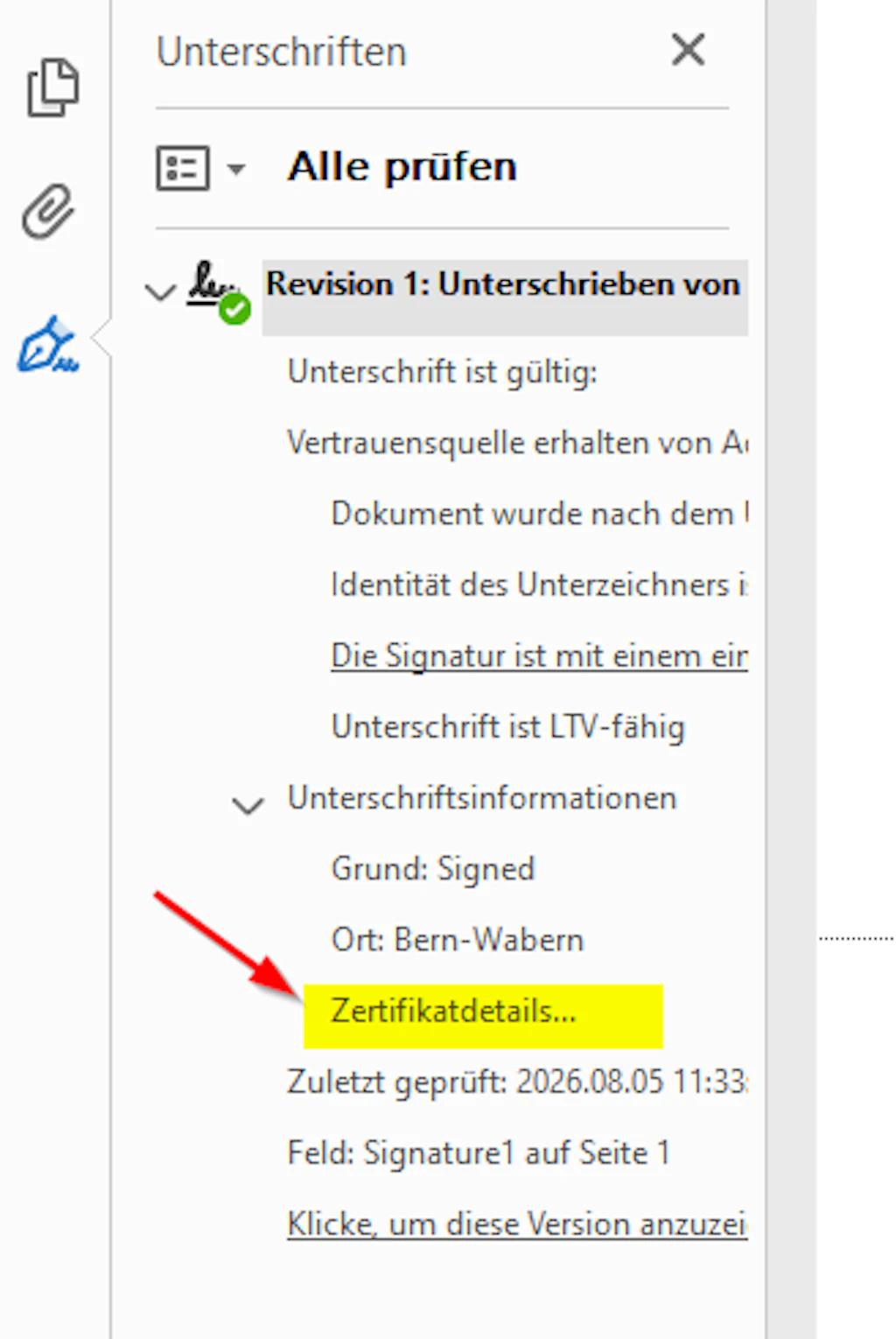
Among other things, you will see:
- by whom and when the certificate was issued
- whether the signature is valid
- whether the document has been changed after signing
- whether the certificate used is trustworthy
Depending on the configuration of Adobe Acrobat Reader, the result of the validation is automatically displayed when the document is opened.
Meaning of the validation result
The validation of electronic signatures ensures that a document has remained unchanged since it was signed and that the signature can be assigned to a uniquely identified person or organisation. This increases the traceability, trustworthiness and legal certainty of digital documents.
For reports, verification, measurement, calibration and certification documents, the electronic signature thus offers an efficient and secure way to guarantee the authenticity of evidence provided digitally.